
The whole way of making videos has turned upside down over the past few years.
The work that once required a full crew, expensive equipment and weeks of editing can now be done in hours — sometimes even minutes. The AI video tools for media production have made it possible for creators, marketers, mom and pop shops, and students to create professional quality content at a fraction of the cost.
The trouble is that most of us are just scratching the surface.
They are using AI to do one or two tiny things, whether auto-generating captions or clipping highlights, and overlooking the big picture. AI can now aid in scriptwriting, voiceover work, scene creation, color grading and sound design, among other things.
This article shares 7 powerful AI media production video tips that really work. Whether you’re new to video and need a little painless instruction or are self-taught and want to fill in some fundamentals, these tips will make sure your time invested in learning is worthwhile.
Let’s get into it.
Tip #1: Have AI Write Your Video Scripts And Never Face a Blank Page Again
Scripting is one of the worst time-vampires in video content creation.
You stare at the screen. You write something. You delete it. You start over. Sound familiar?
AI tools like ChatGPT, Claude, Jasper and Copy.ai can produce full video scripts in seconds. You supply them with a topic, a tone and an intended readership — and they hand back a sturdy first draft that you can touch up.
How to Get the Best Scripts from AI
The key is to be specific in your prompt.
So rather than typing “write a script about getting in shape,” try: “Write a 90-second YouTube script on the top 3 morning rituals for beginners who are trying to lose weight. Use a conversational tone. Put in a hook in the first 5 seconds.”
The more detail you provide, the better.
Then you read through it, tweak your voice, insert personal stories and increase the energy. You’re not substituting your creativity — you’re just solving the blank-page problem.
Pro tip: Get the AI to write 3 different hooks for that script you’re stuck on, and choose the best. This itself can get you double the click-through rate.
Tip #2: Leverage AI Voiceovers to Sound Professional – No Recording Studio Needed
Once upon a time recording a voiceover meant hiring a studio, paying for an actor or spending hours and hours fiddling with your mic levels.
Now? AI voice tools can generate studio-grade narration in minutes.
Tools like ElevenLabs, Murf, Descript and Play.ht let you type out your script and pick from hundreds of realistic voices. You can control speed, emotion, tone and even add accents.
When AI Voiceovers Are Most Useful
| Use Case | Why AI Voice Works Well |
|---|---|
| Explainer Videos | Consistent, clear delivery every time |
| Social Media Ads | Quick turnaround with multiple versions |
| eLearning Content | Scalable without re-recording |
| YouTube Automation | Hands-free narration at scale |
| Product Demos | Professional sound without a studio |
Some creators simply produce hundreds of videos without recording a single word, instead using their own cloned voice — meaning the AI vocal model is trained on their actual voice.
This is particularly helpful if you’re making a lot of content or working on videos in multiple languages. ElevenLabs, for instance, can take your voice and translate it into Spanish, French and German — using your voice, not some generic one.
One Thing to Watch Out For
AI voices are very high quality these days, but they aren’t flawless. Don’t use them for emotional, personal or sensitive content where a human touch is important. When authenticity matters, audiences can still tell the difference.
Tip #3: Get B-Roll and Stock Footage with AI So Your Videos Don’t Look Dull
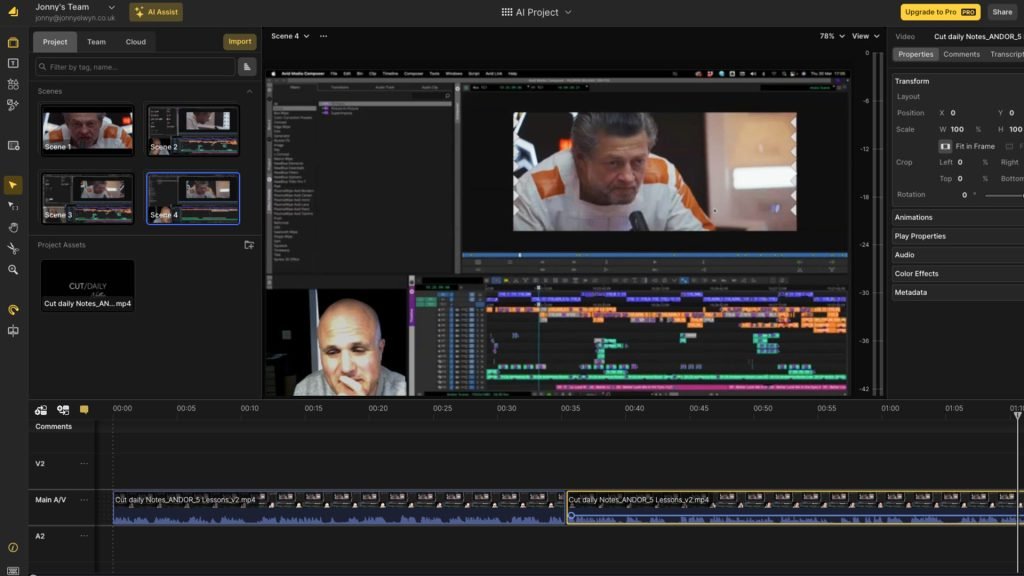
B-roll is the additional footage that runs while someone is talking. It maintains visual interest in the video.
The problem? Finding the right stock footage is slow and expensive. It takes forever to wade through websites like Storyblocks or Shutterstock to find anything that actually fits your script.
AI changes this completely.
Tools That Create Custom Video Footage
Tools like Runway ML, Pika Labs, Sora (from OpenAI) and Kling AI can synthesize short video clips based on a basic text description.
You enter: “A busy coffee shop on a rainy morning, warm lighting, slow motion” — and in seconds you have custom footage that no one else is using.
This is a game-changer for:
- Niche subjects where stock footage barely exists
- Sponsored content where you want a custom look
- Abstract concepts that are hard to shoot, like “the flow of data” or “future cities”
An AI B-Roll Workflow That Doesn’t Waste Time
- Highlight the key moments in your script where visuals are needed
- Write a short description of each scene
- Feed those descriptions into your AI video generator
- Download the clips and drag them into your editing timeline
You can go from script to B-roll in less than an hour. That used to take days.
Tip #4: Increase Your Editing Speed with AI-Powered Editing Tools
Editing is where most creators lose the most time.
Cutting footage, removing silence, syncing audio, putting in transitions and color correction — it’s repetitive work that can chew through an entire day.
AI editing tools have completely reversed that.
The Best AI Editing Features to Try Today
Auto-cut and silence removal tools like Descript and Opus Clip automatically identify and delete filler words (“um,” “uh,” “like”), long pauses and repeated takes. Something that used to take two hours now takes 10 minutes.
Smart reframing tools like Adobe Premiere Pro’s Auto Reframe rely on AI to identify the most important parts of a clip and resize your video automatically for different platforms — landscape for YouTube, vertical for TikTok and Reels, square for Instagram. One edit, every format.
AI highlight detection tools like Munch and Vidyo.ai scan your long-form videos and automatically pull out the best moments. You upload an hour-long podcast and the AI spits out 10 short, caption-ready clips.
Time Comparison: Traditional Editing vs. AI-Assisted Editing
| Task | Traditional Time | AI-Assisted Time |
|---|---|---|
| Removing silences from 30-min video | 45–60 min | 5–8 min |
| Creating captions | 30–45 min | 2–3 min |
| Reformatting for 3 platforms | 60–90 min | 10–15 min |
| Pulling clips from long video | 2–3 hours | 15–20 min |
These aren’t small savings. Over the course of a month, that can mean dozens of hours back in your schedule.
Tip #5: Use AI-Generated Captions and Subtitles To Increase Your Average Watch Time
Here’s a stat that will grab you:
85% of Facebook video is watched with the sound off. On TikTok and Instagram, it’s even more.
If you’re not captioning your videos, you’re missing out on a huge portion of your audience before they’ve even heard a word.
AI caption tools are so accurate now that manual captioning feels almost pointless.
Best AI Caption Tools in 2025
Kapwing — Ideal for fast social media captions presented in various styles.
Descript — Transcribes all of your video and allows you to edit the video by editing the text. Delete a word in the transcript, and it vanishes from the video.
Captions.ai — Built for creators. Adds animated, eye-catching captions that resemble the ones you’d find on viral TikToks.
Adobe Premiere Pro — Now comes with integrated AI transcription and caption generation.
Zubtitle — Instantly add captions to multiple videos at once. Perfect for agencies.
Caption Style Tips That Get More Engagement
Keep captions brief — two to five words per line looks best on mobile. Bold or highlight key phrases you want to stand out. Match the caption color to your brand palette. Use emojis with restraint but intention to draw the eye.
Captions are no longer just a vehicle for accessibility. They’re a core ingredient of video design.
Tip #6: Generate Click-Enticing Thumbnails with AI
Your video thumbnail is the first thing people see.
It doesn’t matter how incredible your video content is — if it’s got a boring thumbnail, no one will click on it.
Most creators spend far too little time on thumbnails. Or they take too long trying to design them manually with little design skill.
AI thumbnail tools are the compromise between these two extremes.
How AI Is Making Thumbnail Creation Faster and Better
Tools like Canva’s AI features, Adobe Firefly, Midjourney and DALL·E can produce custom thumbnail visuals based on a text prompt. You describe what you want, and you get a high-quality image ready for further customization.
You can then drop that into Canva or Photoshop, add your title text, fix the contrast, and publish.
Some tools like ThumbnailAI and Thumbly go even further — they study what’s working in your niche, analyze top-performing thumbnails, and create designs based on that data.
Key Ingredients of a High-Click Thumbnail (AI Can Help With All of These)
- A clear, expressive face (AI can generate or enhance this)
- Bold, readable text (AI can recommend the best copy)
- Contrasting colors that pop against any background
- A visual “gap” that piques the viewer’s curiosity
Quick test: Shrink your thumbnail down to a small size. If you can still tell what it’s about, it works. If it’s a blurry mess, you need a redesign.
Tip #7: Repurpose Long Videos into Multiple Formats With AI
Making one video and posting it on only one platform is leaving a lot on the table.
The smart move is to create once and publish everywhere — and AI makes this shockingly easy.
The Content Repurposing Pyramid
Think of your content as a pyramid:
At the top, you’ve got your long-form video — a YouTube video, webinar, interview or podcast episode.
Below that are medium-form clips — 3 to 5 minutes trimmed from the original.
Below that are short-form clips — 30 to 90 seconds of vertical clips for TikTok, Reels and Shorts.
At the base are static assets — quote cards, blog posts, email newsletters and social captions all derived from your original content.
AI tools handle every layer of this pyramid.
AI Tools Built for Repurposing Content
Opus Clip — Scans long videos, finds the most engaging moments and automatically turns them into short clips with captions and score ratings.
Vidyo.ai — Similar to Opus Clip, but with stronger brand customization options.
Descript — Enables you to generate blog posts straight from your video transcript.
Castmagic — Takes the audio from your podcast or video and transforms it into show notes, email newsletters, social posts and Twitter threads.
Repurpose.io — Automates publishing across all platforms once your clips are ready.
A single two-hour video can easily turn into 20 to 30 pieces of content when you put AI in charge of the repurposing workflow. If you want to see how professional media teams are building these kinds of systems, Media Progresif is a great resource to explore how modern production studios are adapting to AI-driven workflows.
How These 7 Tips Work Together
These are not tactics you should use in isolation. The real power comes when you put them together into a system.
Here’s what a complete AI-driven video production workflow could look like:
Step 1 — Use AI to write the script (Tip 1)
Step 2 — Create a voiceover from the script (Tip 2)
Step 3 — Generate your B-roll footage with AI (Tip 3)
Step 4 — Let AI handle all the editing (Tip 4)
Step 5 — Add captions automatically (Tip 5)
Step 6 — Generate an AI thumbnail (Tip 6)
Step 7 — Repurpose the final video into short clips and other formats (Tip 7)
From idea to multi-platform content drop — the whole process is faster, cheaper and more consistent than any traditional workflow.
Frequently Asked Questions
Q: Do I need to know anything technical to use AI video production tools?
No. The vast majority of AI media production video apps are made for people who start from zero. If you can type a sentence and click a button, you can use them. Apps like Canva, Descript and Opus Clip are extremely beginner-friendly.
Q: Can AI-generated videos be posted to YouTube?
Yes, but YouTube requires you to specify when your content is “edited or synthetic” — particularly realistic AI-generated visuals, voices or people. AI-generated content is allowed, as long as you’re transparent.
Q: Will video editors and creators be replaced by AI?
AI is a tool, not a substitute. It takes over repetitive tasks and lets human creators focus more on storytelling, strategy and creativity. The most effective creators are those who harness AI so they can work more intelligently, not those who refuse to acknowledge it.
Q: What do these AI tools cost?
It varies. Many have free tiers with restricted features. Most paid plans cost between $10 and $100 per month based on usage. It’s incredibly affordable — even the top tiers — when you compare it to employing an entire production crew.
Q: Can I use AI voices and visuals commercially?
Most tools offer commercial licensing on paid plans. Always read each tool’s own terms of service before using AI content on commercial projects.
Q: What is the best AI tool for someone who is just starting out?
Start with Descript or Canva. Both are intuitive, powerful and come with sturdy free tiers. From there, ease your way into tools like Opus Clip for repurposing and ElevenLabs for voiceovers.
Q: Is AI-created video content worse quality than traditional production?
Not anymore. Particularly in the social media content world, AI-assisted videos can be just as polished as those created the traditional way. According to Wired’s coverage of AI video tools, the gap closes more every month as the tools improve.
Where AI Media Production Is Headed
The tools available today would have seemed like science fiction five years ago.
By 2026 and beyond, we can expect AI to handle even more of the production pipeline — real-time translation, fully generated virtual presenters, automatic brand compliance checks and one-click full video generation from a blog post or outline.
The creators who integrate AI into their workflow now will have a huge head start on the competition.
Final Thoughts
AI media production video tools are not just a fad. They’re becoming the standard.
The 7 tips in this article — ranging from AI scripting and voiceovers to automatic editing and content repurposing — represent the most practical, high-impact ways to make AI an essential part of your video workflow today.
You don’t need a big budget. You don’t need a crew. You don’t need years of editing experience.
It takes the right tools, a clear system and a willingness to experiment.
Start with one tip. Get comfortable. Then layer in the next one. Pretty soon you’ll be making more content, at higher quality, in less time than you ever thought possible.
The camera is rolling. It’s your move.